Generate a new landing page
1. Introduction
From accessing the Campaign Manager to finalizing and launching your landing page, each step is detailed to streamline the process effortlessly.
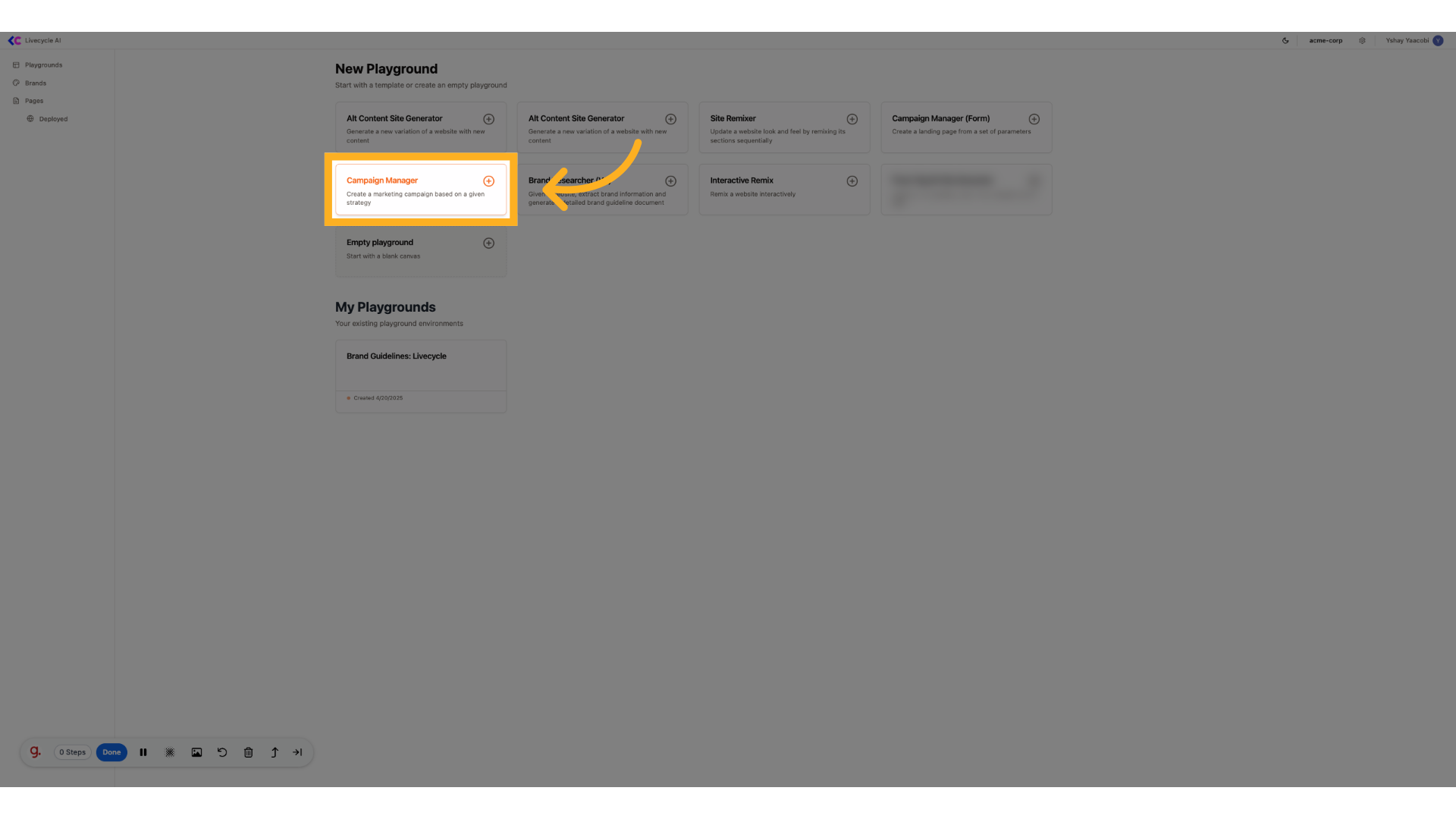
2. Click "Campaign ManagerCreate a marketing campaign based on a given strategy"
Access the Campaign Manager to create a new marketing campaign.
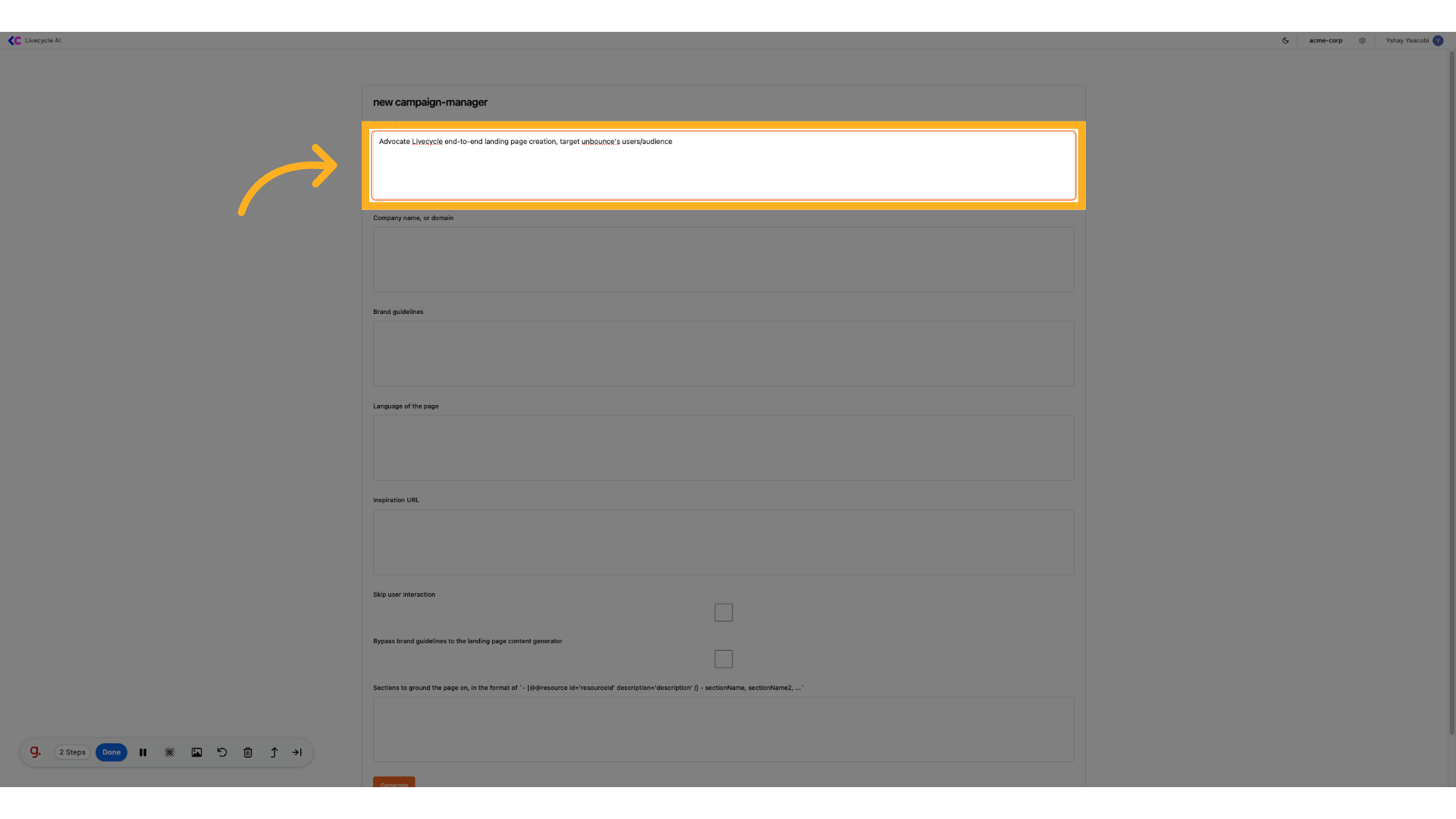
3. Fill landing page strategy
Enter the provided content for the landing page creation strategy.
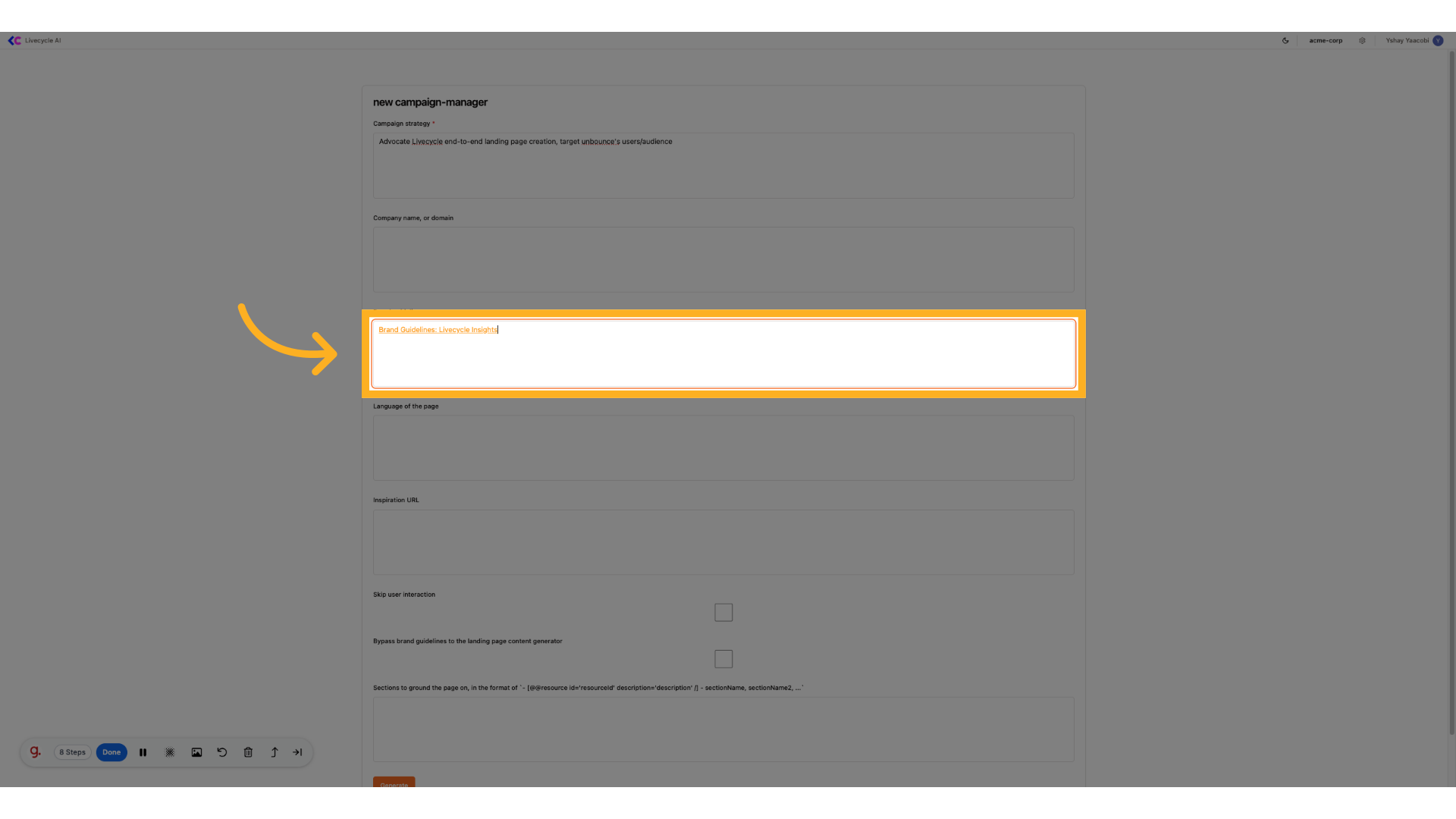
4. Paste "Brand Guidelines: Livecycle"
We can pass a brand guidelines resource that we've copied from another playground or leave it empty for generating a new brand guidelines.
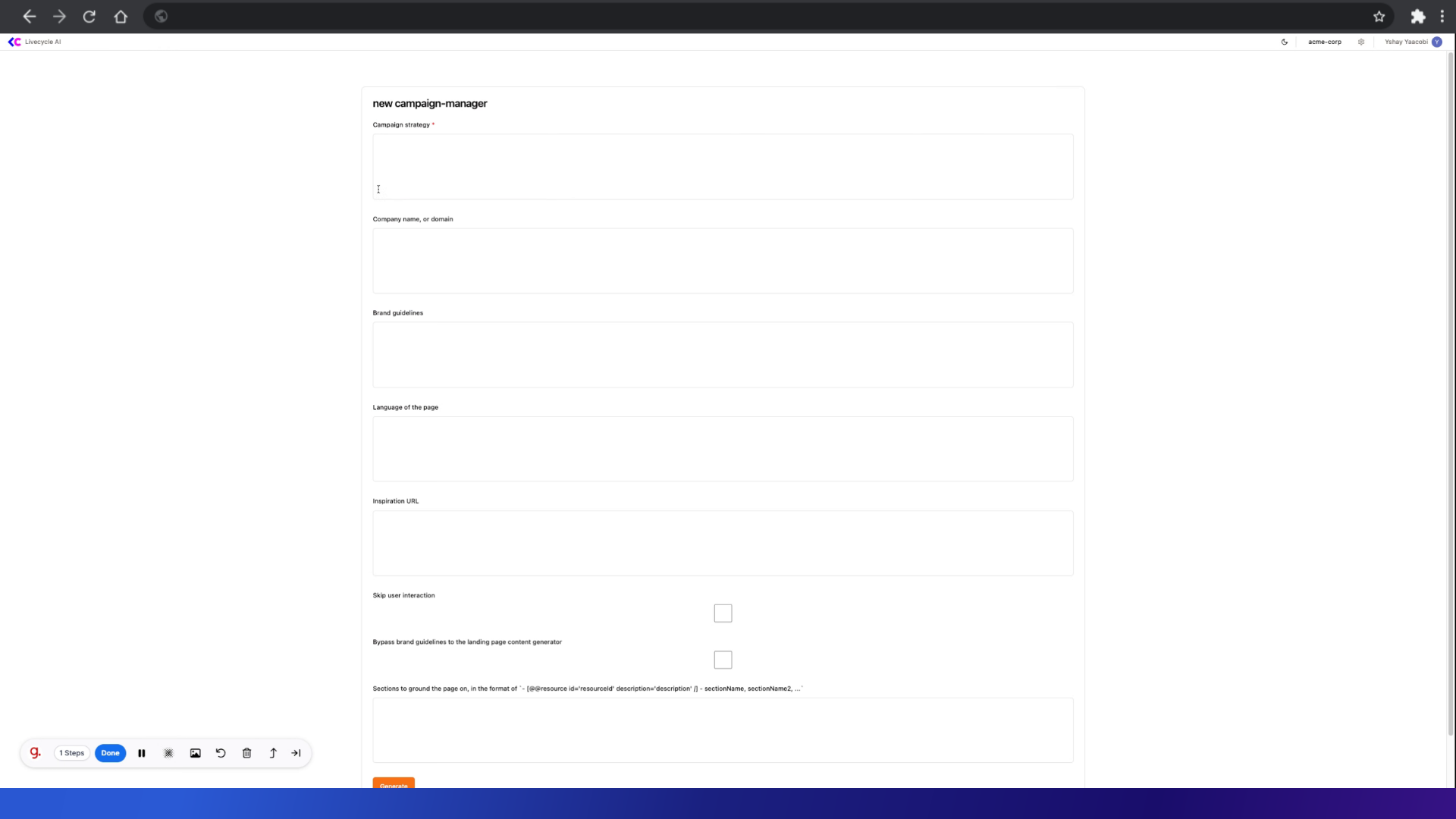
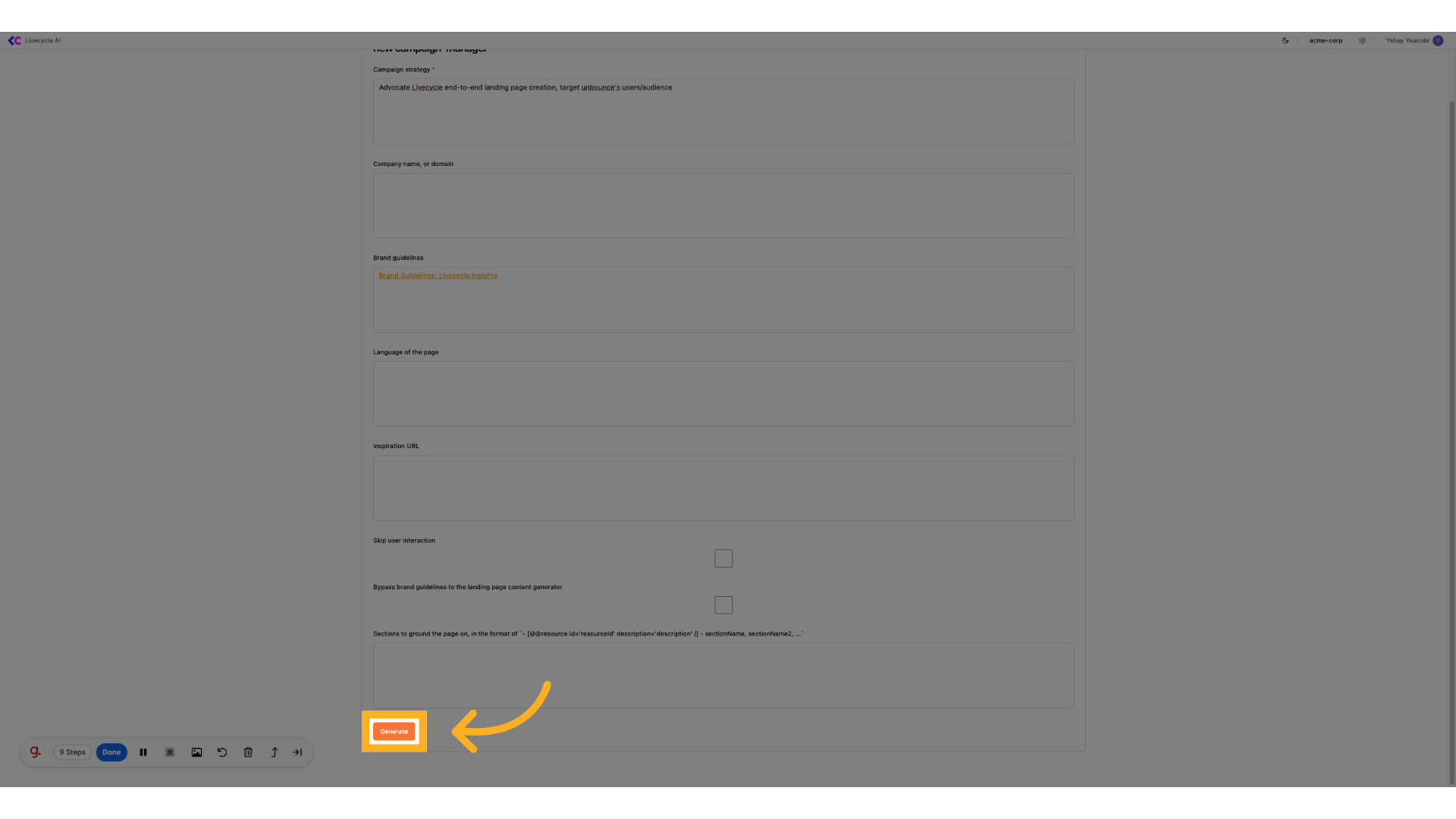
5. Click "Generate"
Click on the 'Generate' button to proceed.
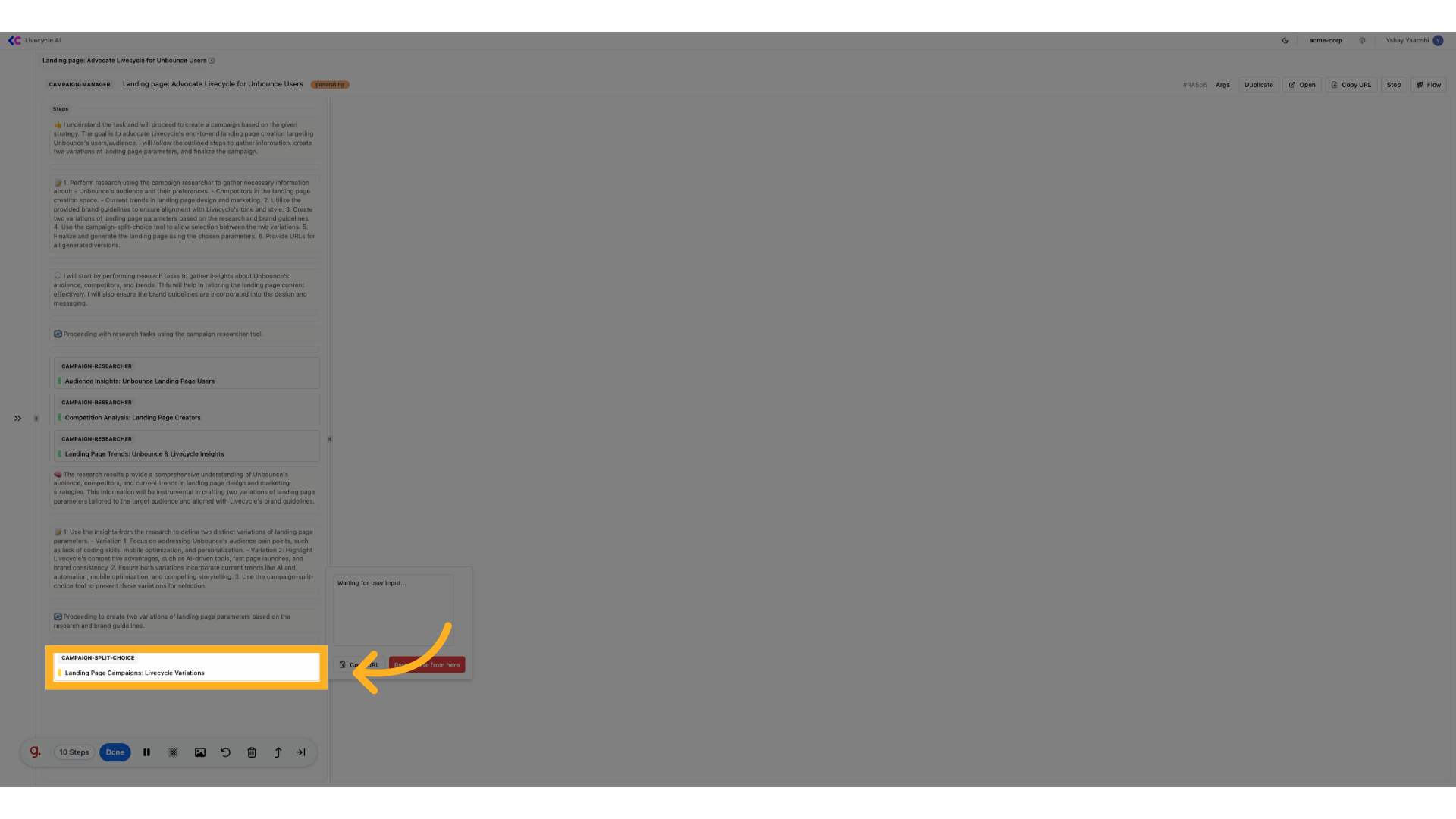
6. Click "Landing Page Campaigns: Livecycle Variations"
We see that our AI agent is done quite a lot, but it need our guidance for choosing the best parameters for the campaign
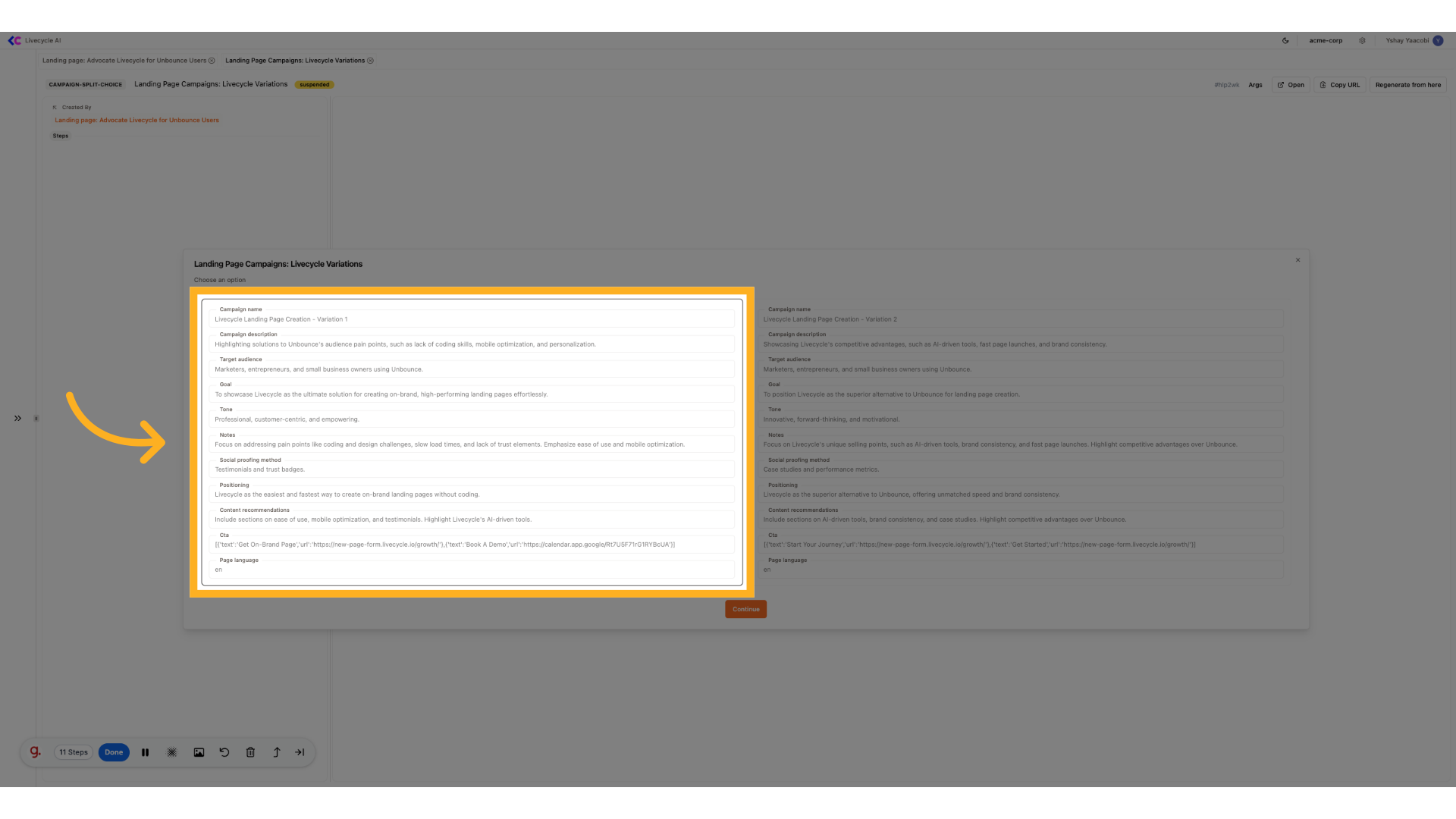
7. Choose the best option
You can also edit each of these parameters inline
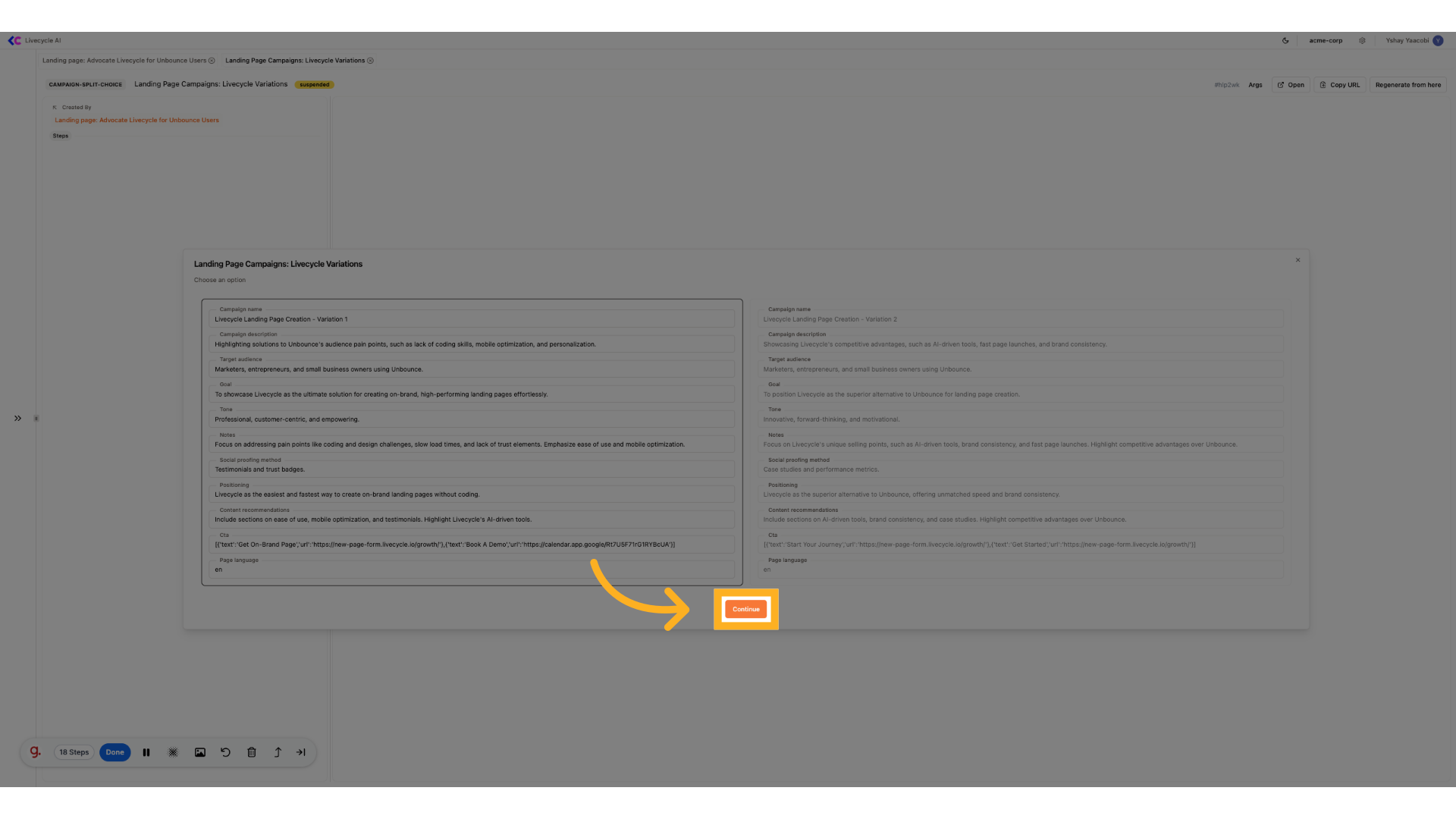
8. Click "Continue"
Proceed by clicking on the 'Continue' button.
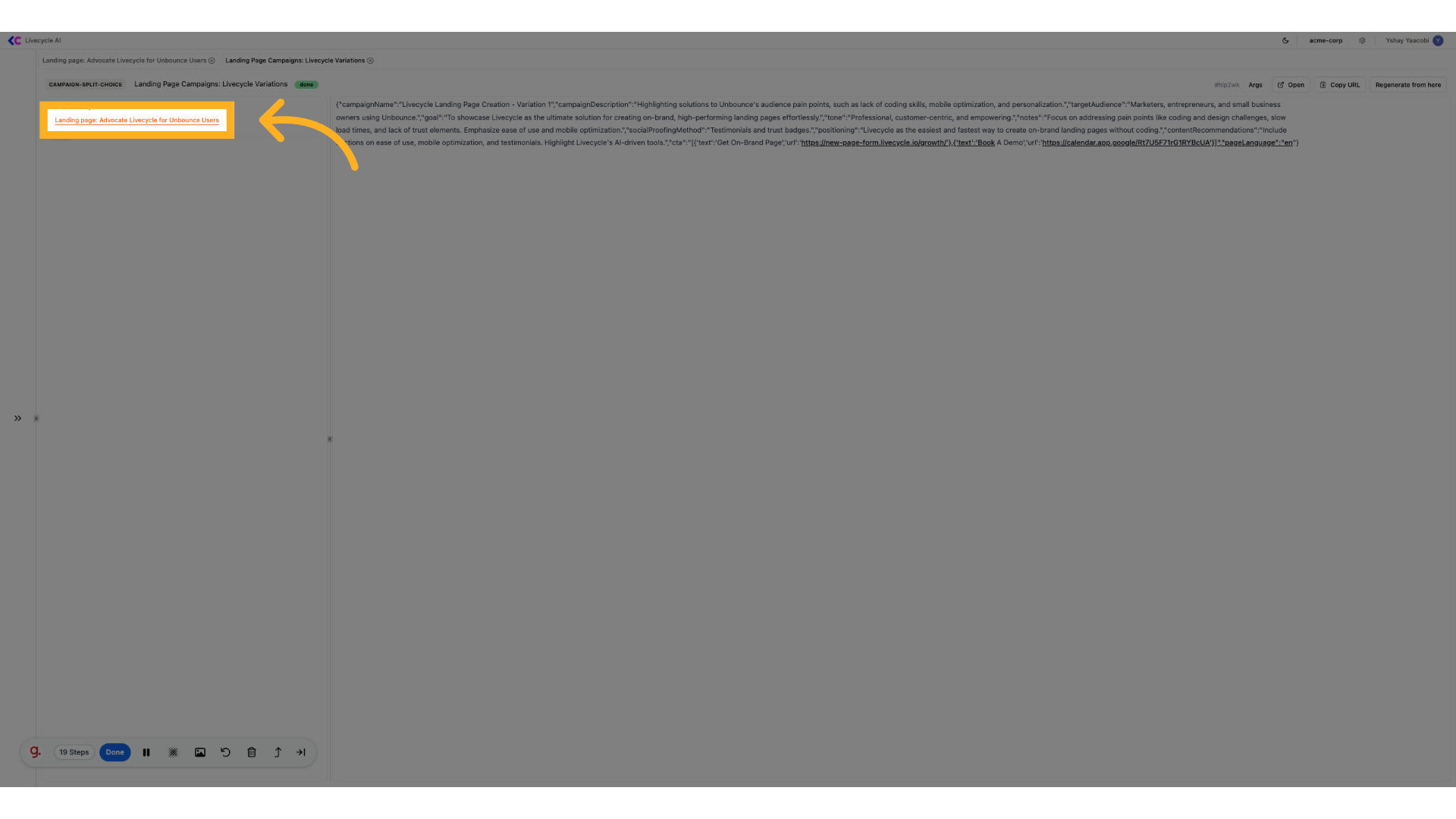
9. Go Back to our page status
Let's go back to our page status, we can always use the left step panel to navigate between the different steps
10. Navigate sub resources
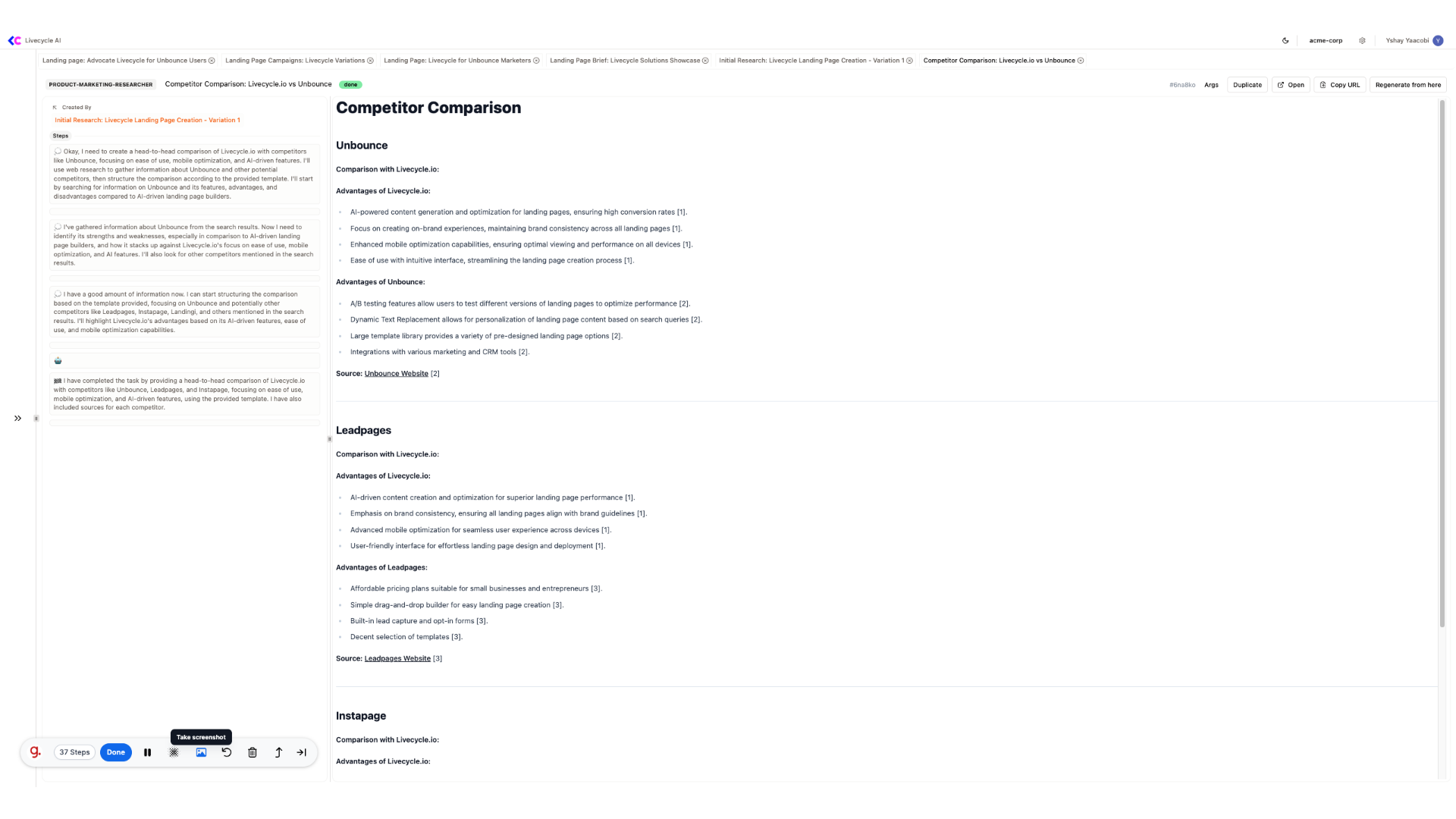
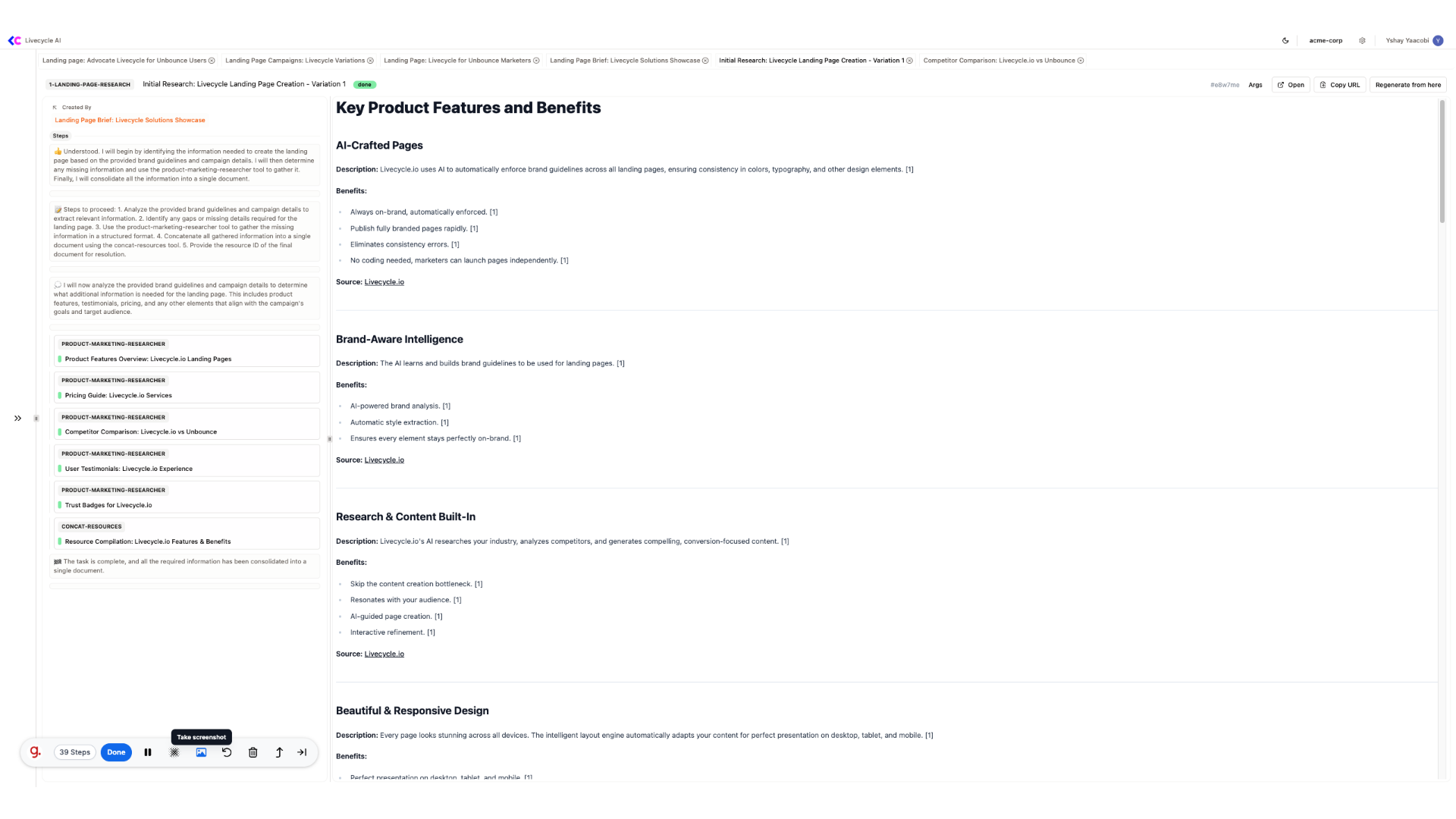
For example, here we can see part of the research done by a researcher agent regarding competition
11. Navigate sub resources
Go to the "Livecycle Marketing Playground" page
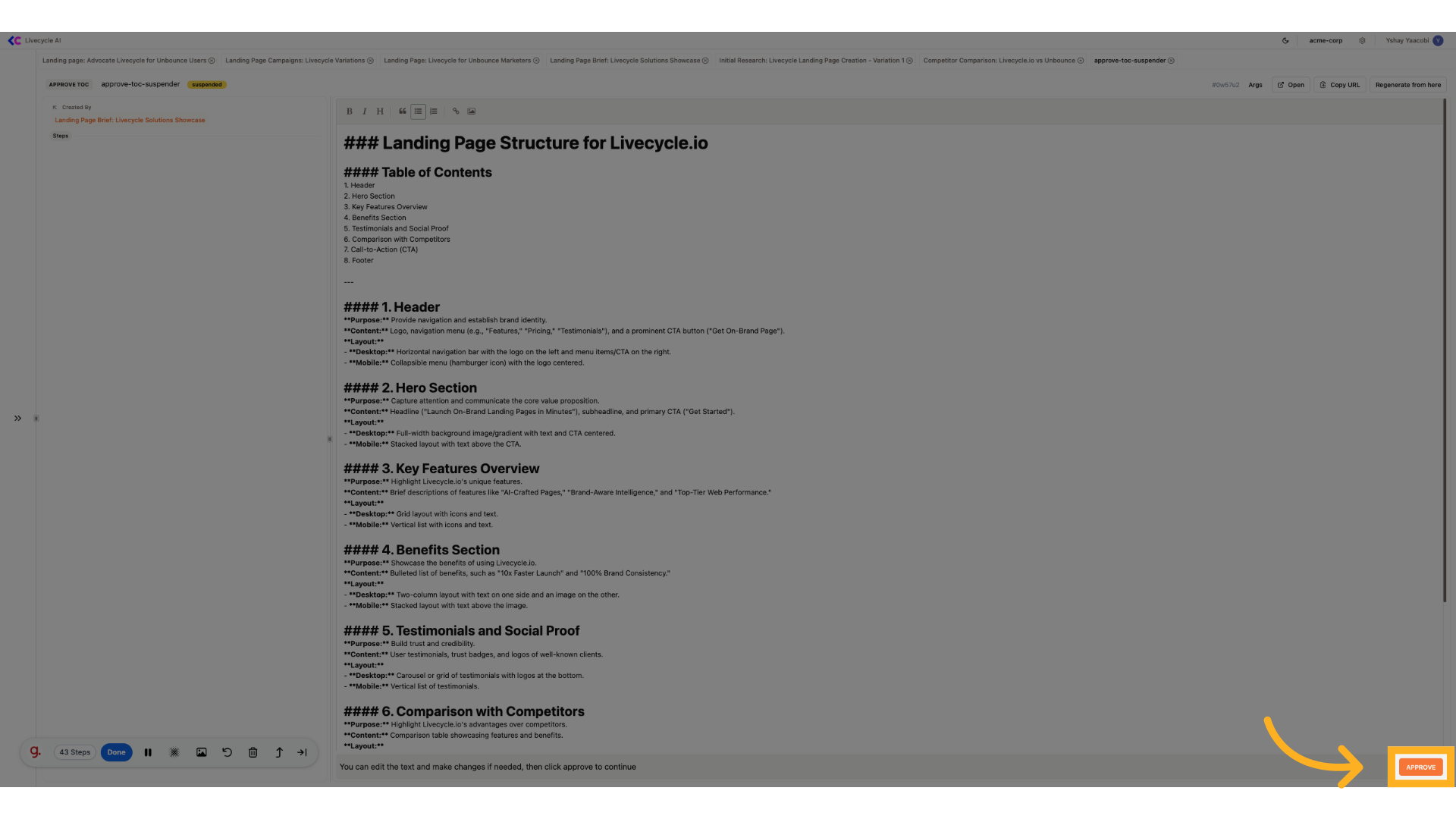
12. Click "approve-toc-suspender"
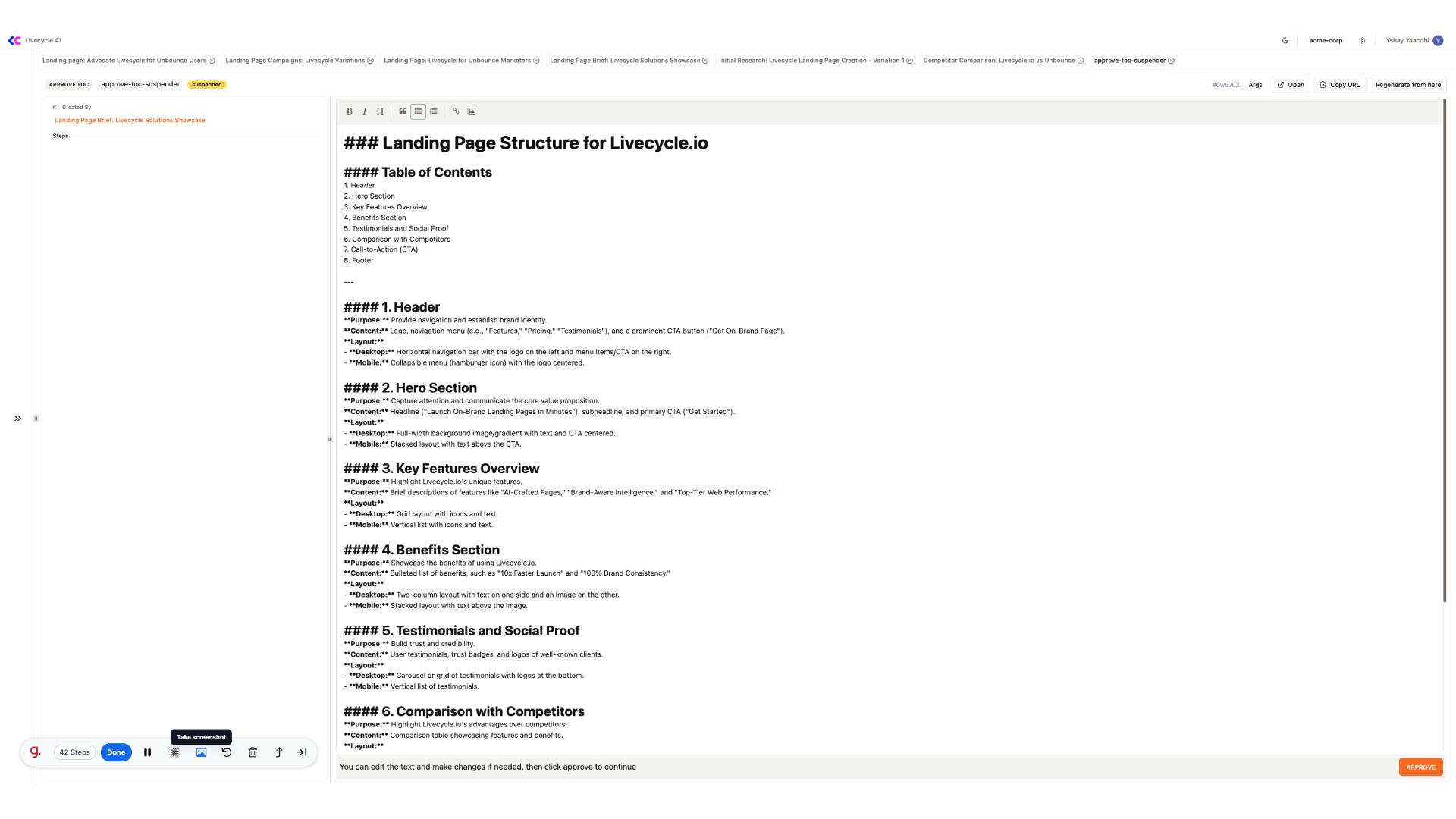
We now see that the AI agent request our review for the page structure

13. View TOC
We can view and edit the structure to get the best results
14. Approve TOC
Let's approve it
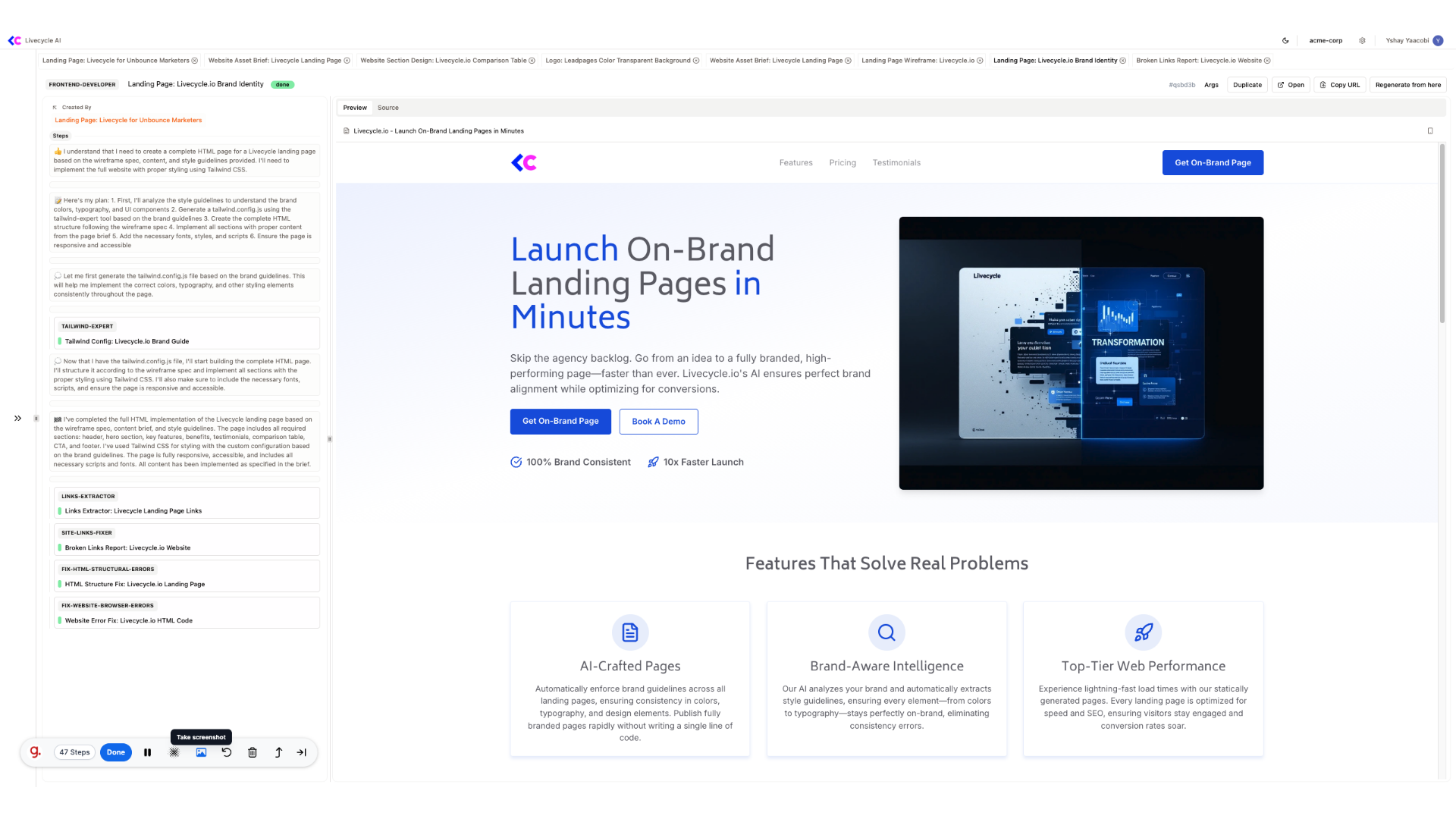
15. Navigate to our frontend developer agent
We can know see the first iteration of the page
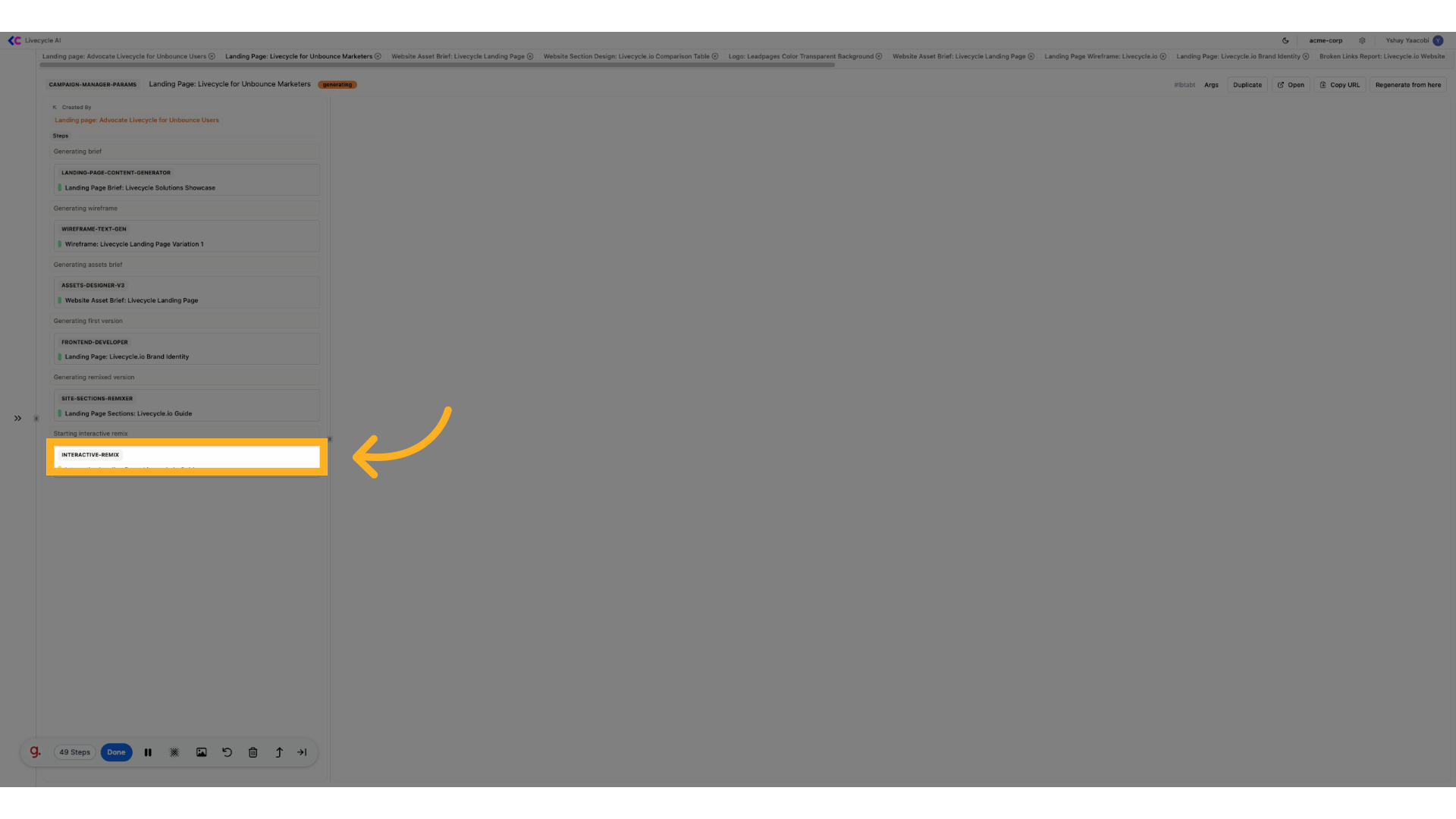
16. Click "interactive-remix"
We can use the interactive remix tool to adjust our results
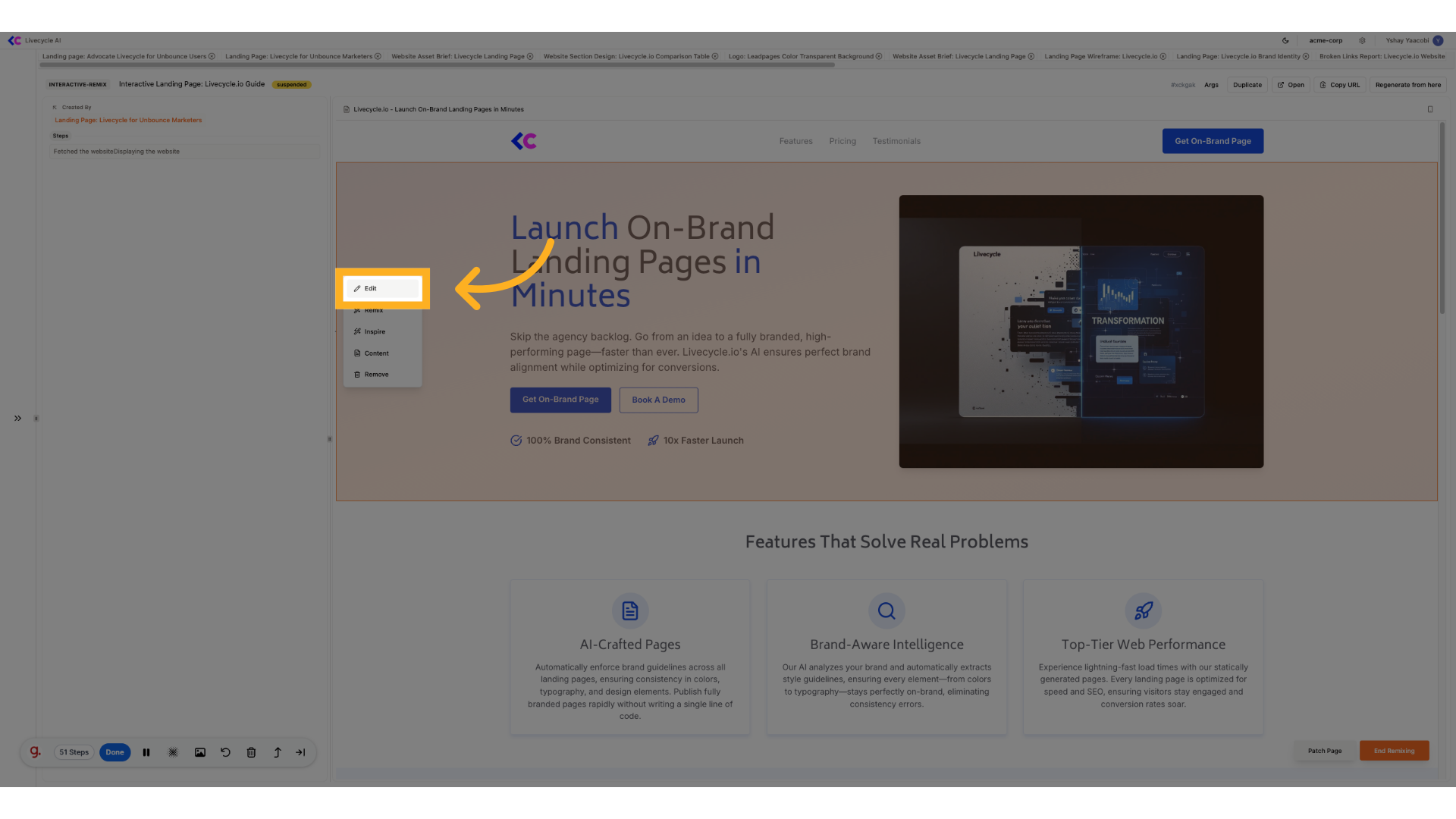
17. Click "Edit"
Open the editing tool.
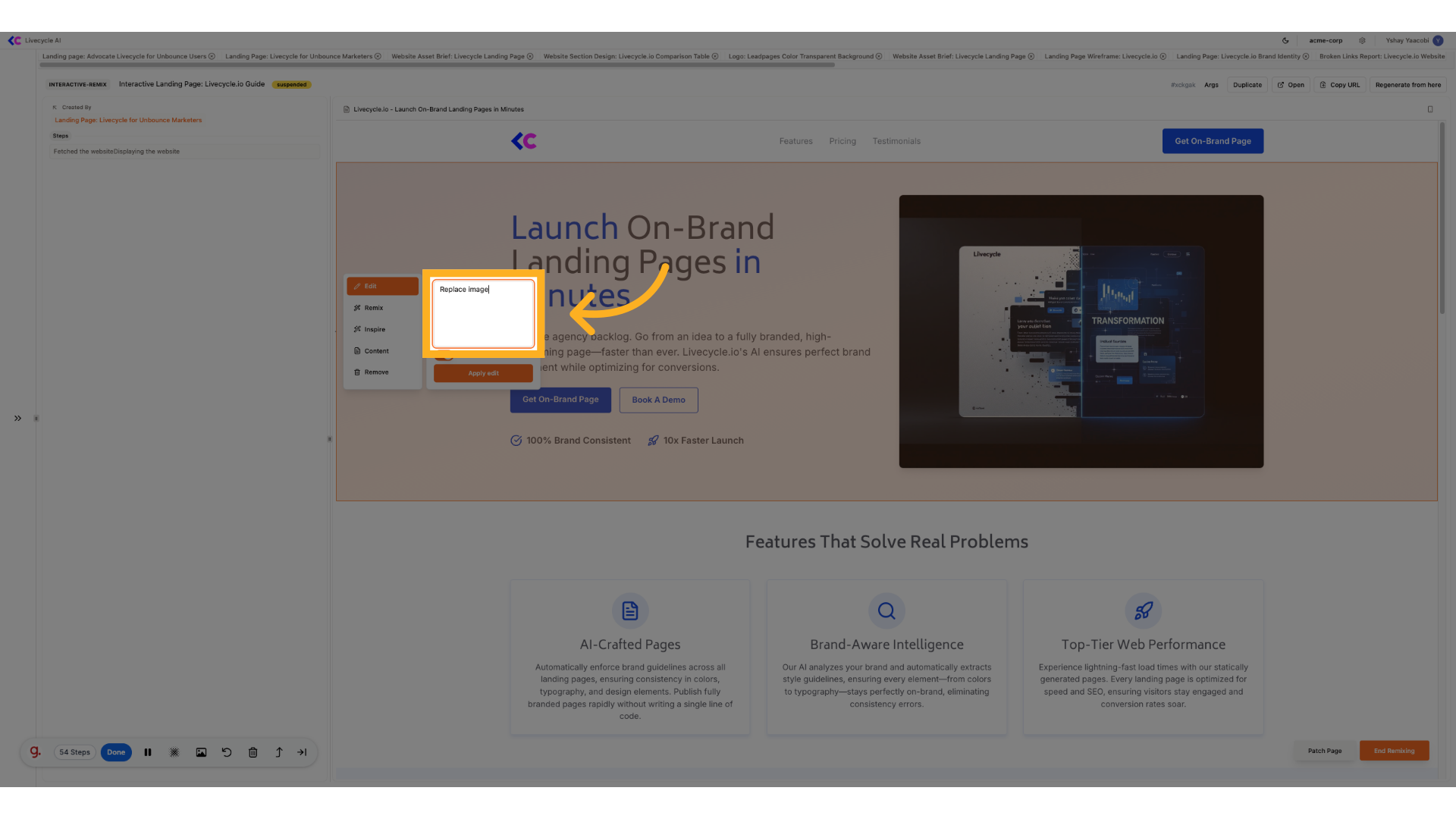
18. Fill "Replace image"
We'll use "Replace the image with the designated one" and toggle allow image generation
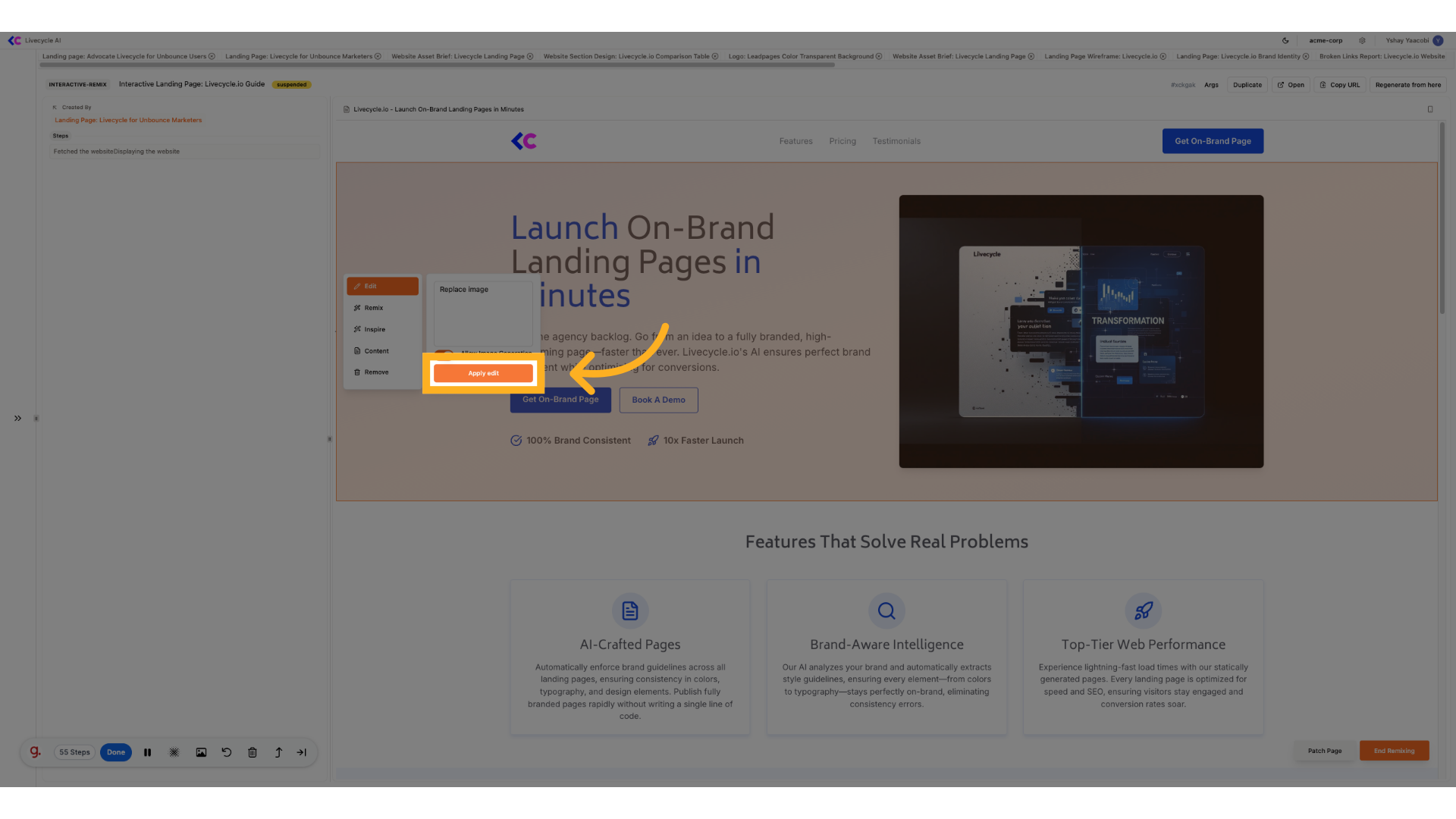
19. Click "Apply edit"
Apply the edit changes.
20. Choose Varation
Browse the page at "Livecycle Marketing Playground"
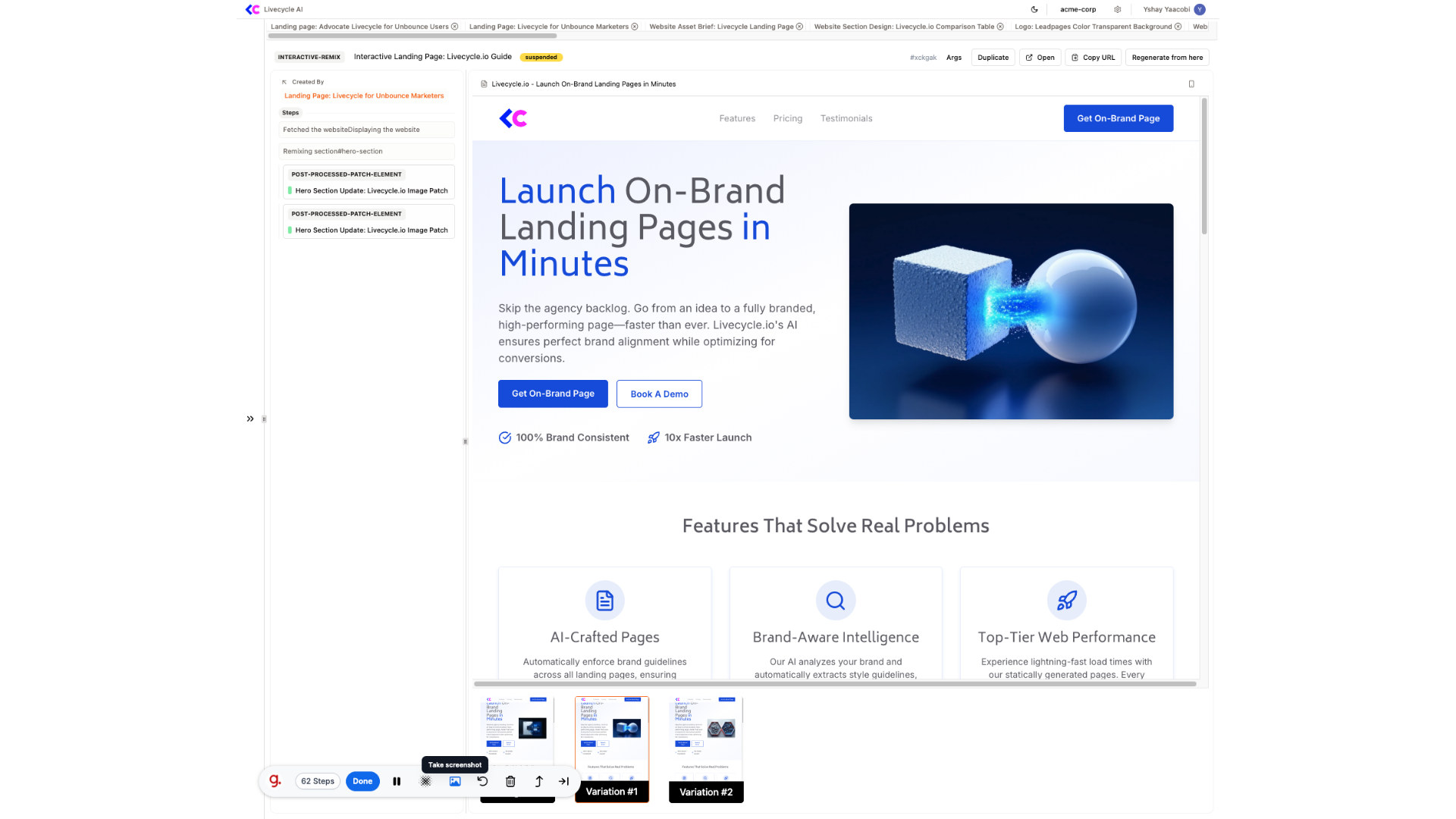
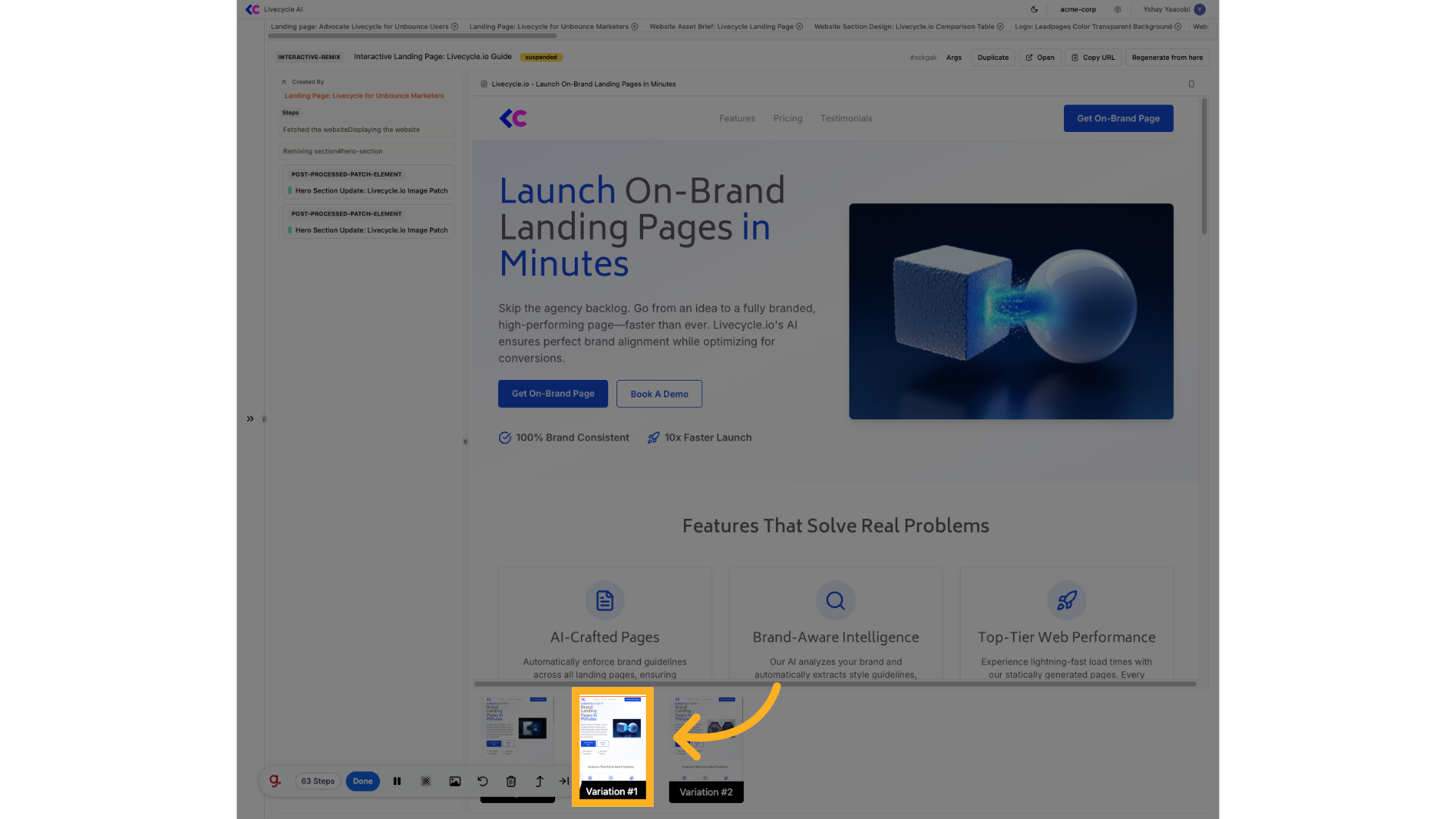
21. Choose Varation
Select the desired version, you can hover each variant to see live preview
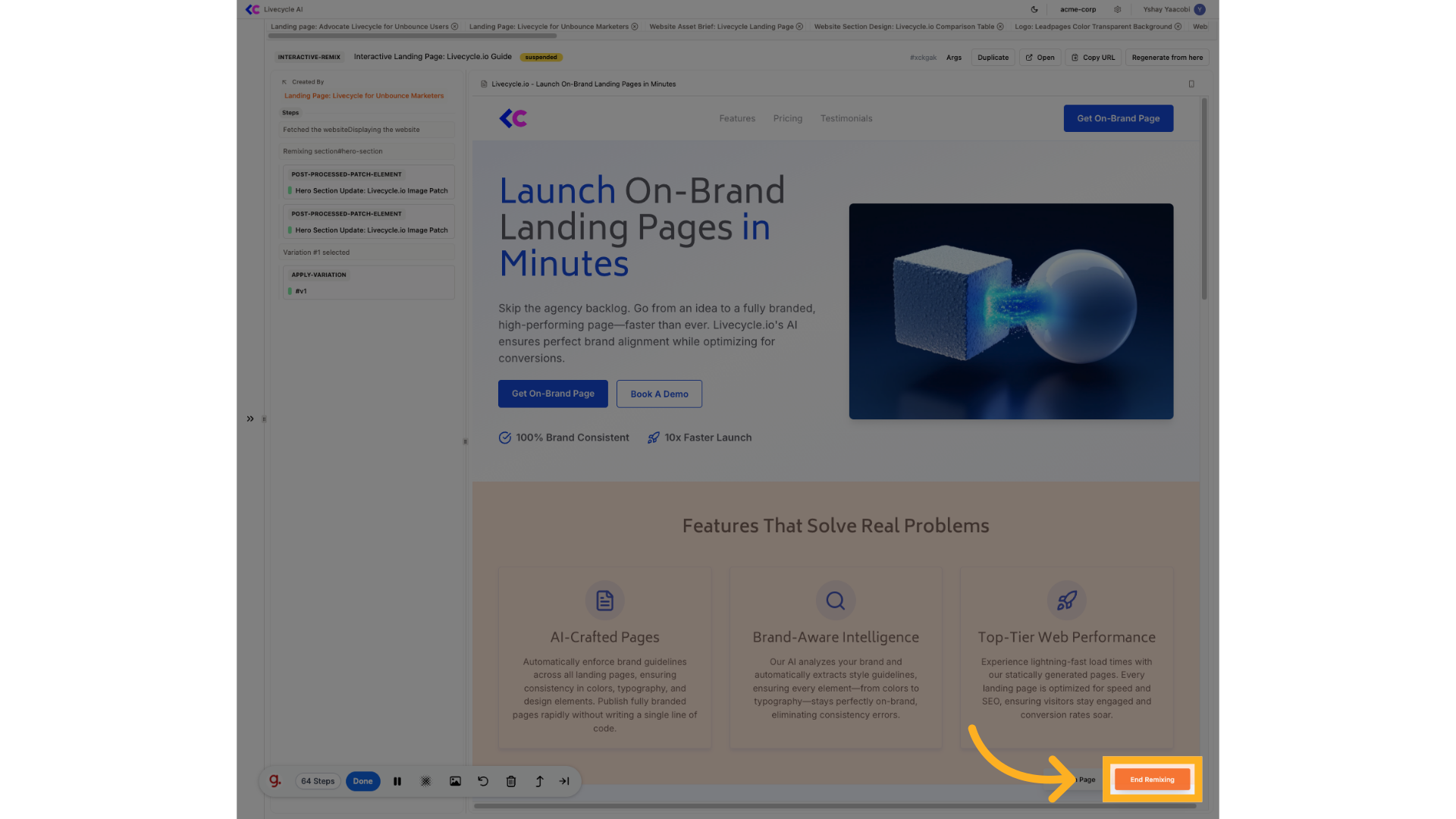
22. Click "End Remixing"
We can do as many iterations as we want, once we've done, we can clicked on the End Remixing button
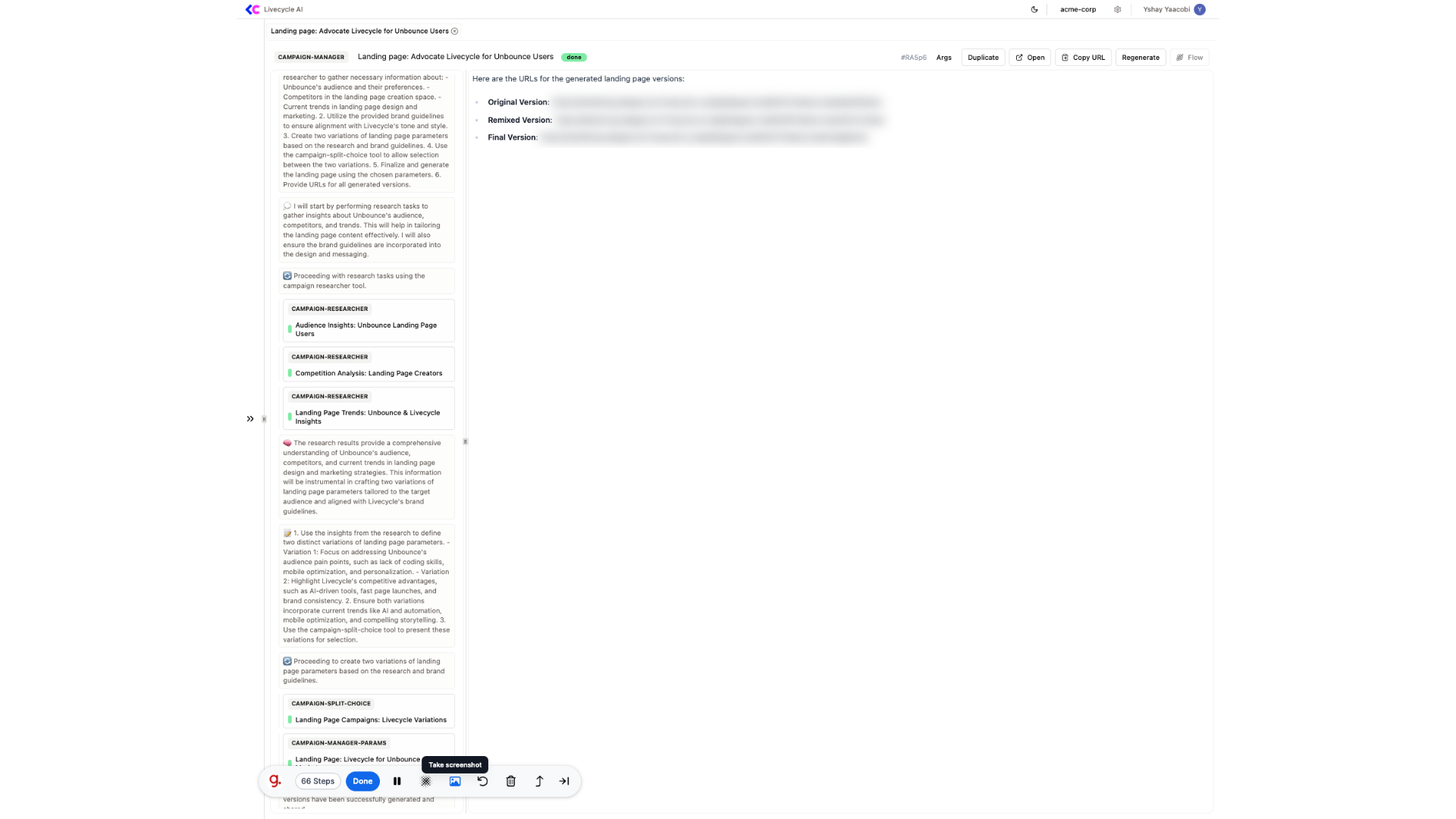
23. Click on each one of the versions
Finally, we can see the links for each version of the page
The guide covered the comprehensive process of creating a new landing page on Livecycle.
See also: campaign-manager